
How to make an exclusion on Windows Security
Windows Security (formerly Windows Defender) tends to block or remove the miner files, causing the mining process to never start.
This issue can be avoided by doing an exclusion in Windows Defender, marking the miner files as safe, not to be scanned and / or removed.
First we must write the following command on the Command Dialog Box (Windows key + R) and click "Ok":
windowsdefender://exclusions

Then click on Yes

You can also access your Windows Security settings by going into your system tray, clicking the shield icon:

You will be redirected to Virus & threat protection, you must go into Virus & threat protection settings and click on Manage Settings:
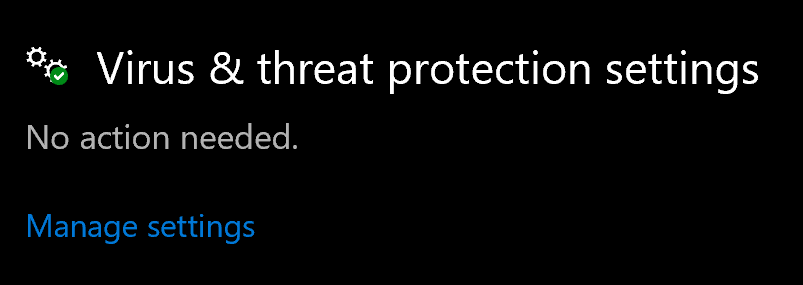
Once you are in Settings, scroll all the way to the bottom, you will find the "Exclusions" section there:
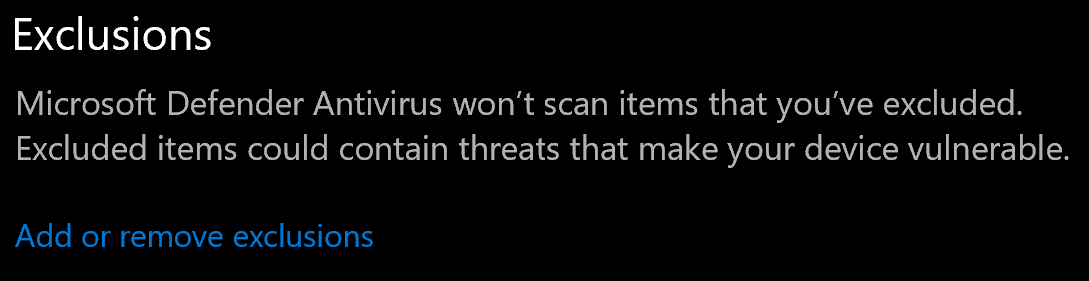
Adding the exclusion
Click on Add an exclusion:
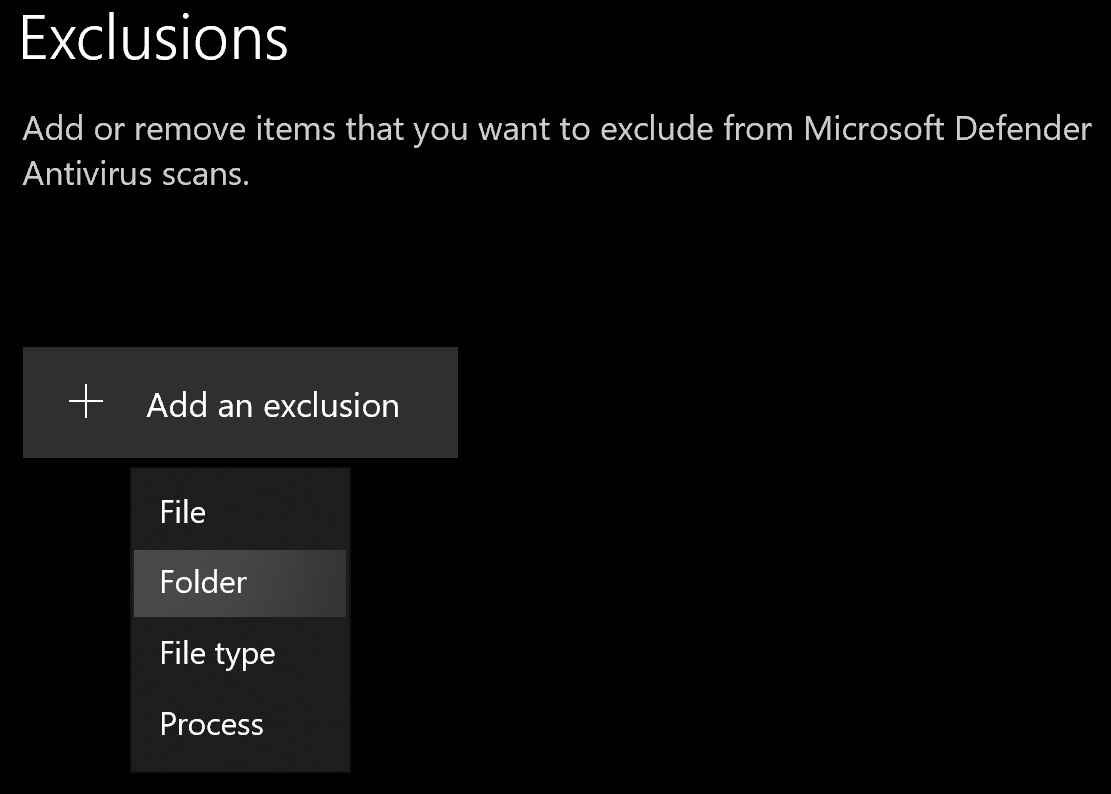
There, you will need to select a folder. Usually, a normal installation will place the miner files on:
C:\Users\YourUser\AppData\Roaming\unmineable-miner-mfi\unminer-files
*YourUser depends on your Windows user name.
Note: The folder may be different if you selected a different location when you installed the miners files.

That's it! Now Windows Security won't remove or block your miner files again 😄
If you have any issue, question or suggestion contact us here: