
How to schedule a mining process on Windows
There is currently no button or function included on our easy mining app that allows you to launch it at a specific time of day or when you start your computer, however this functionality is possible using the Task Scheduler feature on Windows devices.
To access it, simply use the following combination of buttons ;
“Windows” + “R”
And search for "taskschd.msc":

Or simply search "Task Scheduler" in the Search Bar

Once there, on the left side of the window, you will find a section called "Actions", you must enter the option "Create Basic Task"
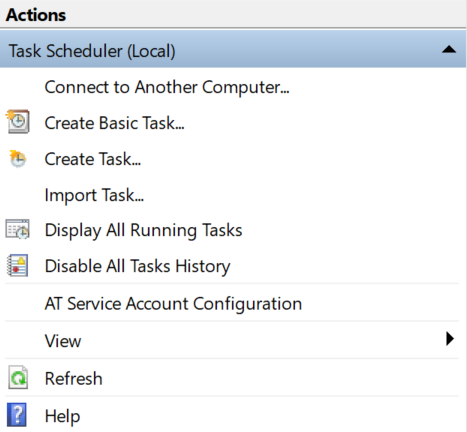
The wizard to start the configuration of a scheduled task will open. 🙂
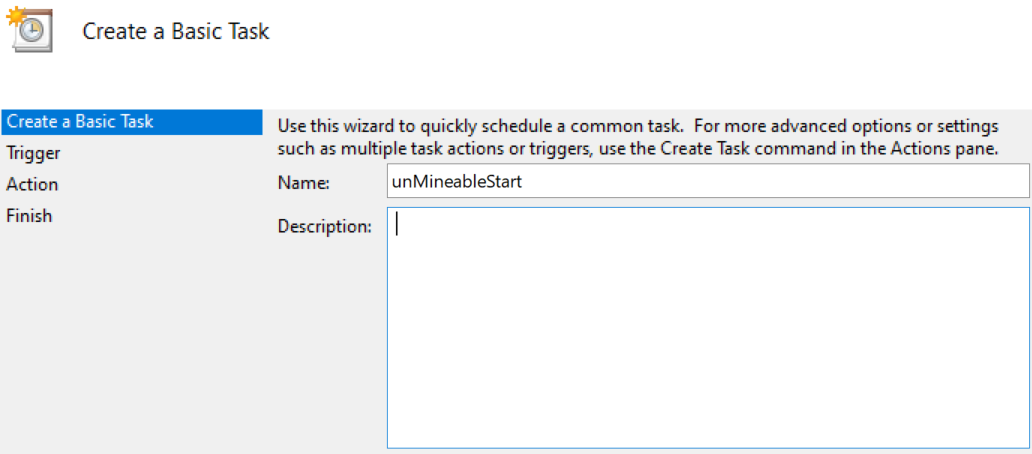
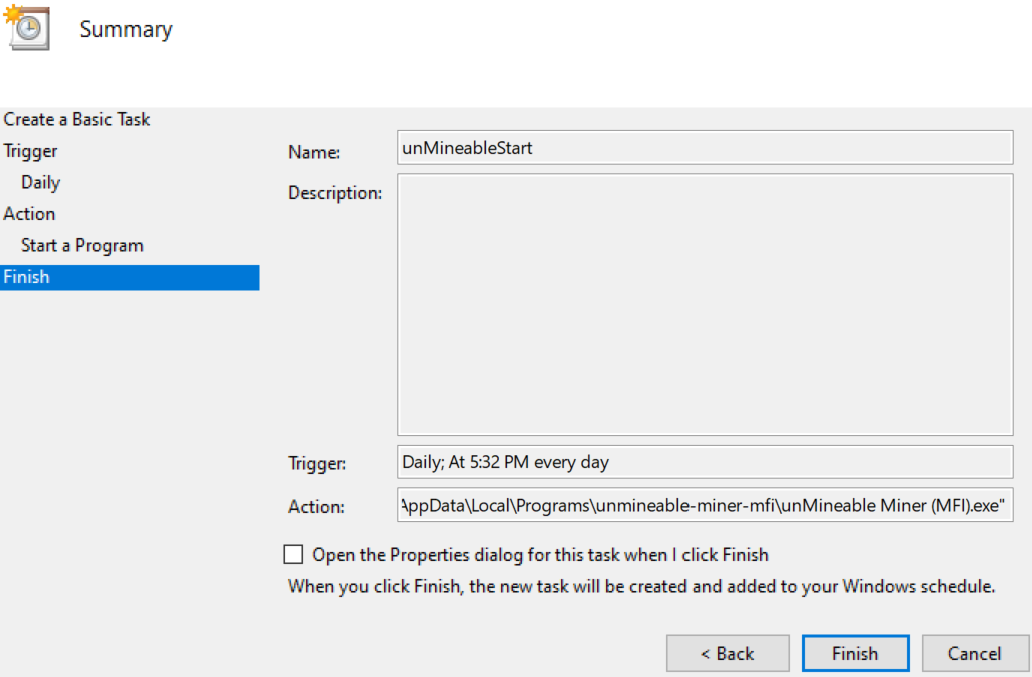
First you must set a name to easily recognize the process on the Task Scheduler Library
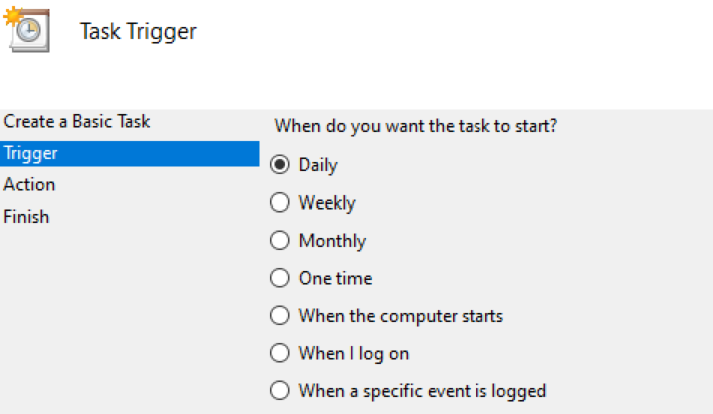
Then, select how often you want it to be done, in this case we will select “Daily”
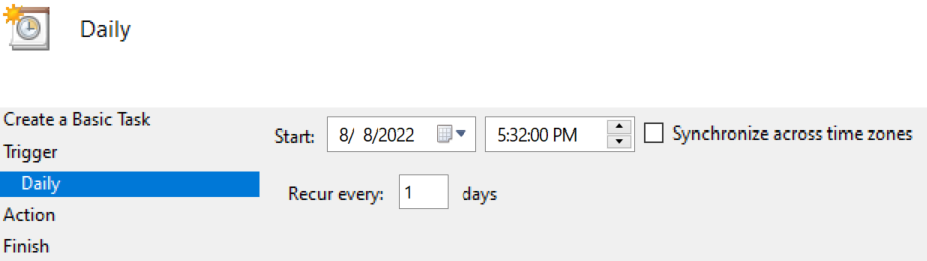
Choose from when you want it to start and the time
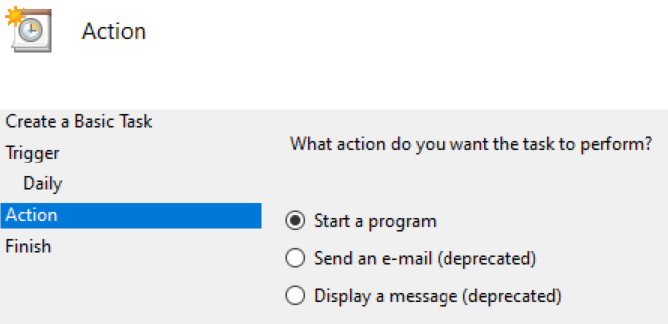
Finally, press the “Start a program” option...
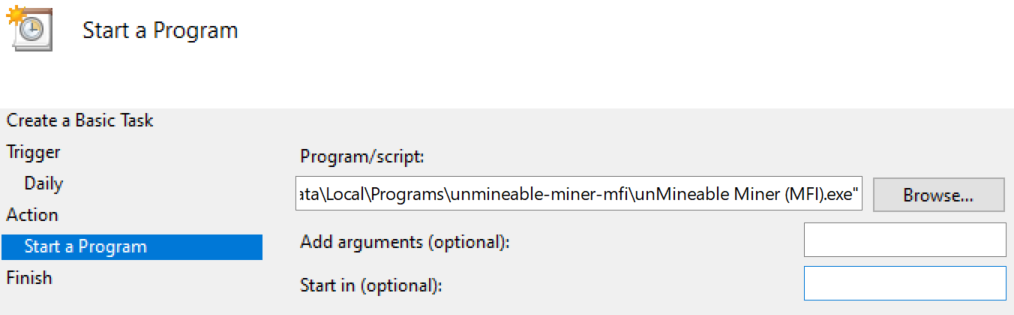
And on the next screen “Browse” to search the mining app you want to run, in this example, “unMineable Miner (MFI).exe".
A summary about the scheduled task will be displayed and by clicking "Finish" it will have been created successfully. 🙂
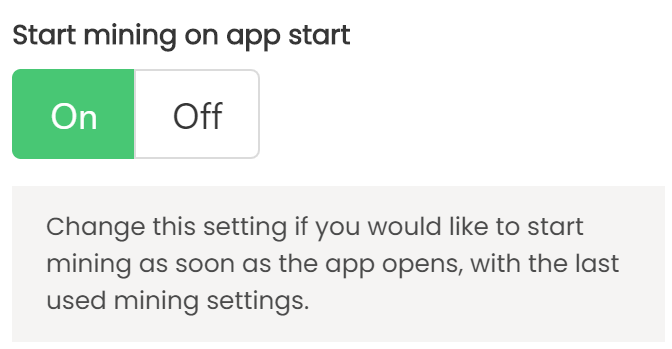
IMPORTANT:
Be sure to have the following button activated in order to start mining with your previous configuration whenever the app is opened:
One disadvantage is that the Task Scheduler can't be used to close programs, in order to set this, you must create a .bat file with the following content:
taskkill /f /im "unMineable Miner (MFI).exe"
In this case, by default, the app is called "unMineable Miner (MFI).exe" but you must set the .exe name of the pointed mining app.
Just create a new scheduled task with the date or hour you want to end the mining process and set the .bat file to be started as it will close the app by using it. 🙂

If you have any issue, question or suggestion contact us here: