
How to create a .bat file
Some third party mining apps can be used by running a .bat file, in this case, we will do an example for running PhoenixMiner (for Etchash mining only) with a custom configuration:
⚠️ Note that PhoenixMiner is an outdated software and is only being used here as an example, you can create other bat file configurations to run on other popular third party mining software using our Configuration Wizard.
On Windows Explorer:

First, download the mining application and unzip the files on a folder.
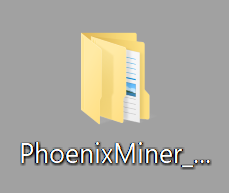
Then, you will have to open the contained folder and create a text document:
Important:
To change the format of the file it is necessary activate the "Show file name extensions" folder option. You can find this checkbox on the "View" section on the top of the File Explorer.

Right click 🡢 New 🡢 Text Document


You may name it “start.bat” in order to apply the new format to the file
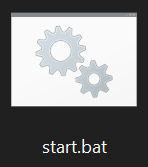
To edit it, simply have right click on the document and select the Edit option.
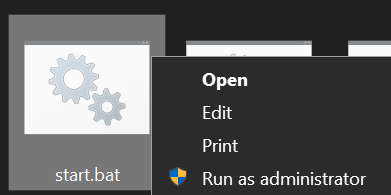
Finally, paste the configuration provided on the support center or our Wizard.
PhoenixMiner.exe -pool etchash.unmineable.com:3333 -wal COIN:YOURADDRESS.WORKER_NAME -pass x
pause
Note that you must change COIN, YOURADDRESS and WORKER_NAME. If you use our configuration Wizard, the contents will already have your coin, address and worker name.
Save and double click it, a terminal window will show up and you will be now mining! 😀
On Command Prompt
Another alternative to create a .bat file is through the Windows Command Prompt, for this you must first use the following combination of buttons:
“Windows” + “R”
A window will open in the lower left corner of the screen where you will have to click on "OK"

You are now in the Windows Command Prompt! 👍
To access a folder, you must first type "cd" and then the name of the folder you want to access, since the PhoenixMiner folder was sent to the desktop, you must go there first
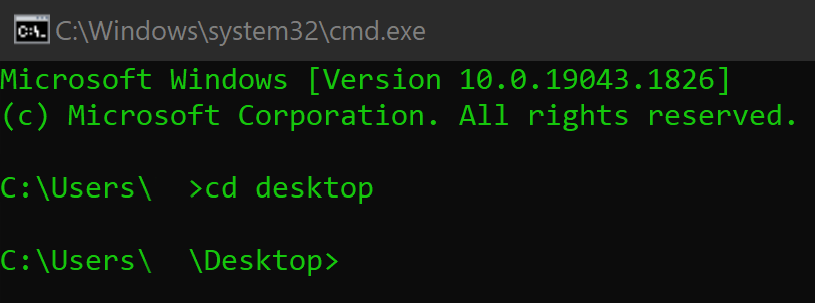
Then, to the "PhoenixMiner_6.2c_Windows" folder which is inside the unzipped folder with the same name.

There, you need to type "copy con start.bat" to create the .bat file inside the miner folder

Finally, press the Enter key, type "@echo off" to start writing on the file; press Enter once again and paste the configuration provided in our support center.
Important: It is necessary press "Enter" again after "pause" in order to include it to our .bat file. ⛏

You must change COIN, YOURADDRESS and WORKER_NAME.
The start.bat file should appear on the PhoenixMiner folder, simply double click it, a terminal window will show up and you will be now mining! 😀
If you have any issue, question or suggestion contact us here: